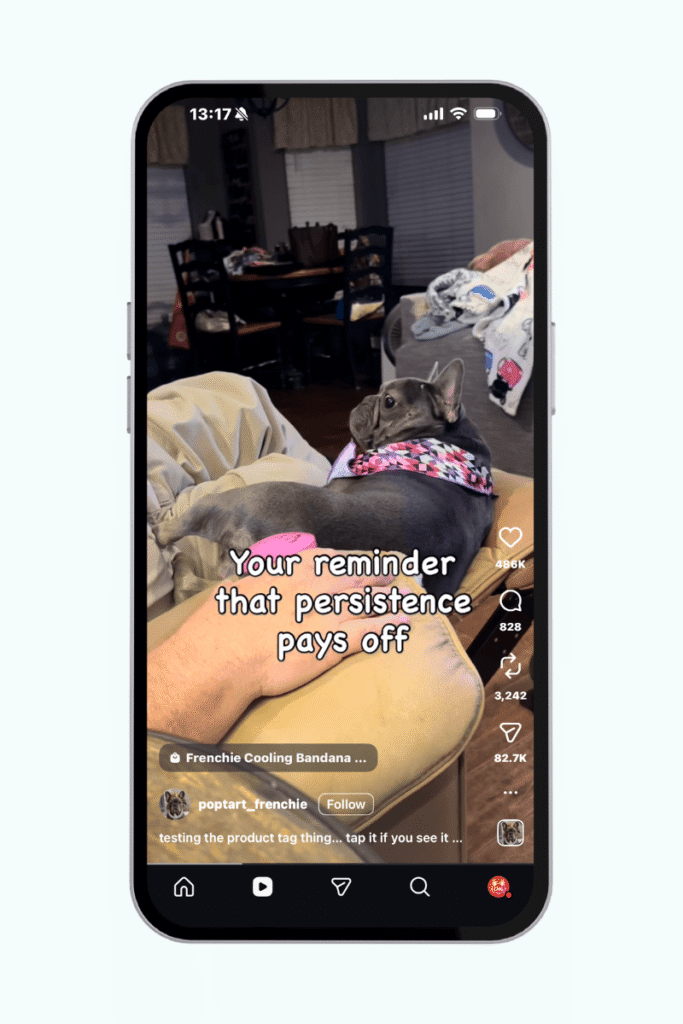
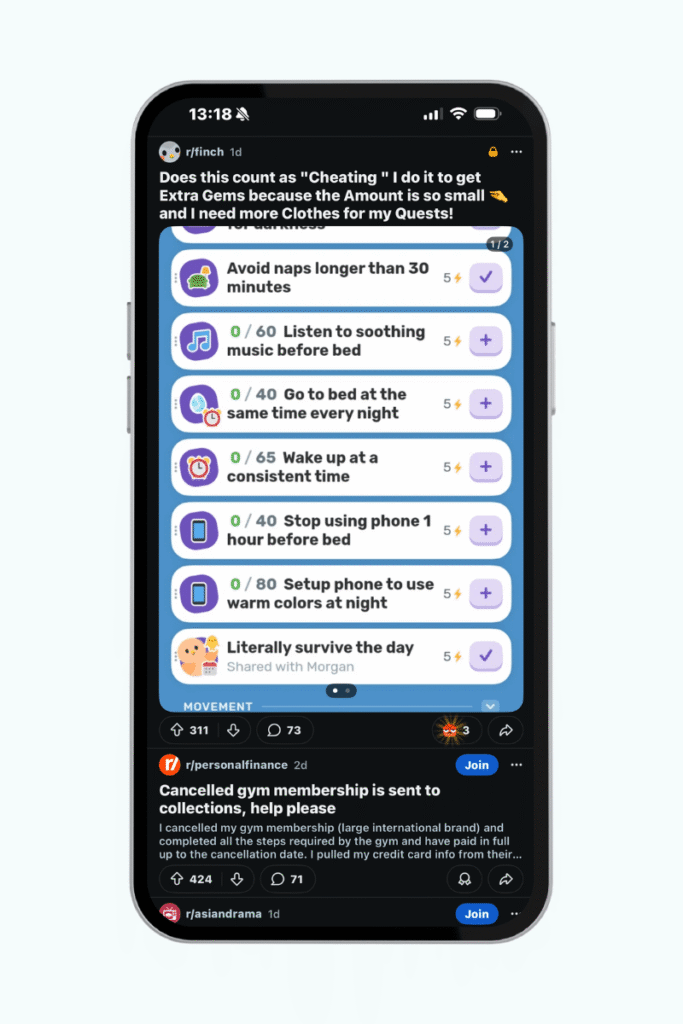
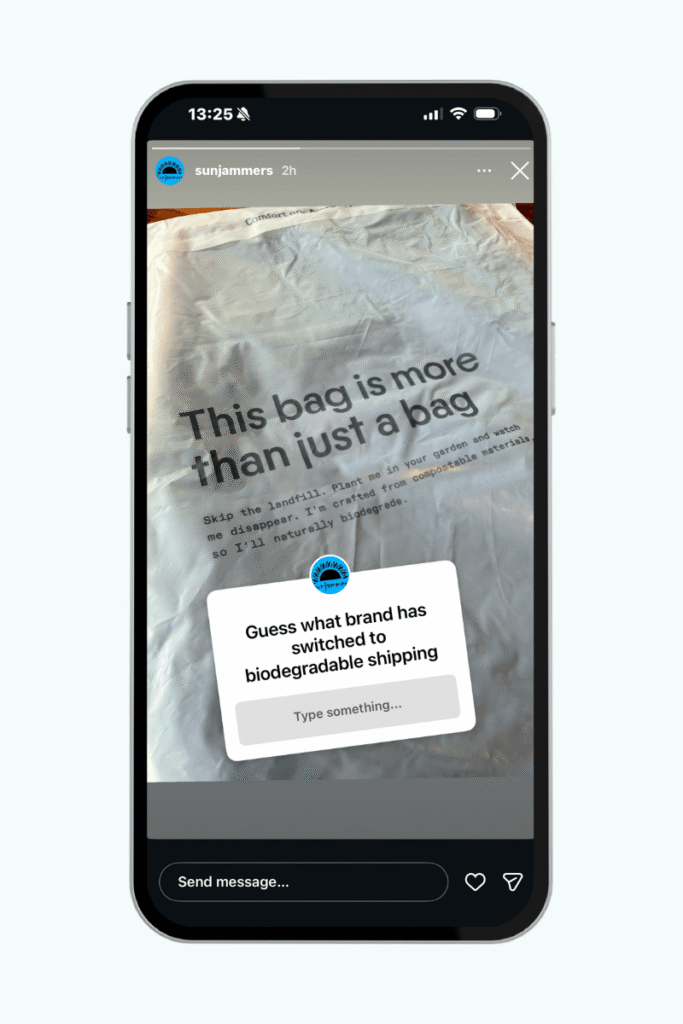
Don’t Bet It All on TikTok: Diversify to Stay Online

Why Diversification Is Essential

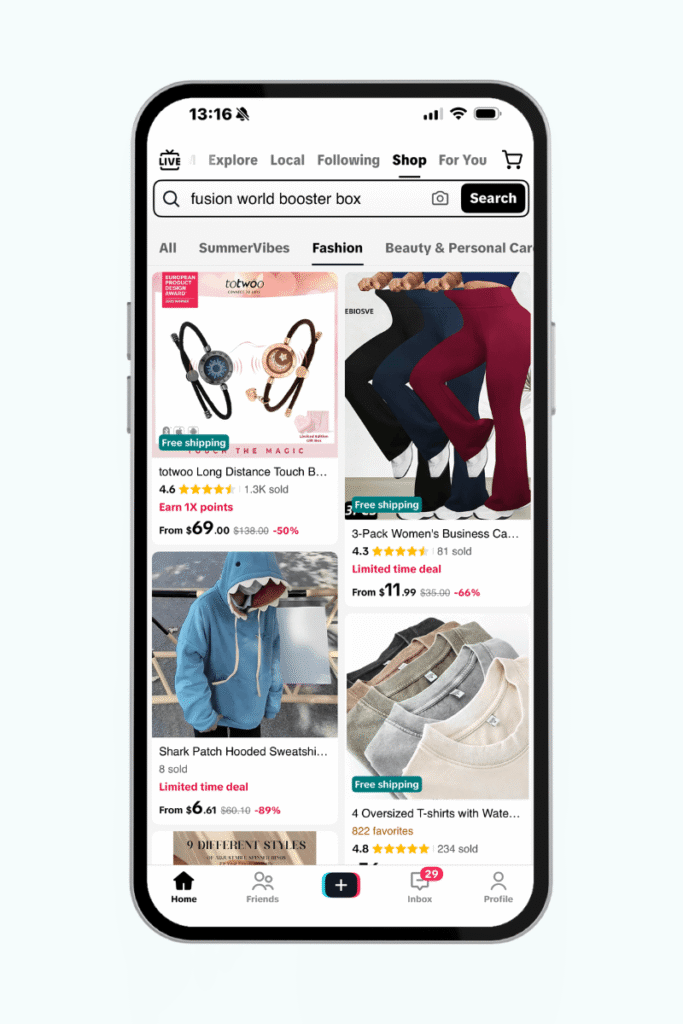
TikTok’s recent instability has shown the risks of relying too heavily on a single platform for marketing. While it’s been a powerful tool for audience engagement, its uncertain future highlights the need for a diversified strategy. Businesses that rely on one platform risk losing access to their audience, revenue streams, and brand visibility overnight. Investing in multiple channels creates a safety net that keeps your brand thriving, no matter what changes come your way. Diversification isn’t just about preparation; it’s about building a more adaptable and sustainable marketing foundation.

The Risks of Relying Solely on TikTok (or Any Single Platform)

Relying on a single platform like TikTok for your marketing efforts creates significant vulnerabilities. Regulatory uncertainty, such as the ongoing debates around TikTok’s future, can disrupt your ability to connect with your audience. Additionally, shifts in user behavior or the rise of new platforms can quickly make a once-effective strategy less impactful. Platform trends come and go in this fast-paced online world. A single-platform approach leaves your business exposed to these unpredictable changes, making diversification essential for long-term success.

Benefits of a Diversified Digital Marketing Strategy

A well-rounded digital marketing strategy provides several key advantages:

  • Safeguards Against Platform Disruptions: By diversifying your efforts, you reduce the risk of losing your audience if a single platform becomes unavailable or less effective.
  • Expands Your Audience Reach: Different platforms cater to different demographics, allowing you to connect with a broader and more diverse audience.
  • Optimizes ROI Across Channels: Spreading your budget across multiple channels lets you test, measure, and refine what works best, ensuring you get the most out of your investment.
  • Increases Flexibility: A multi-channel approach makes it easier to adapt to changes in the digital landscape and pivot your strategy as needed.
  • Builds Long-Term Brand Stability: Relying on multiple channels ensures your business remains visible and thriving, even as trends and technologies evolve.

Key Channels to Include in Your Marketing Mix

hey already spend their time. Here are some key areas to focus on:

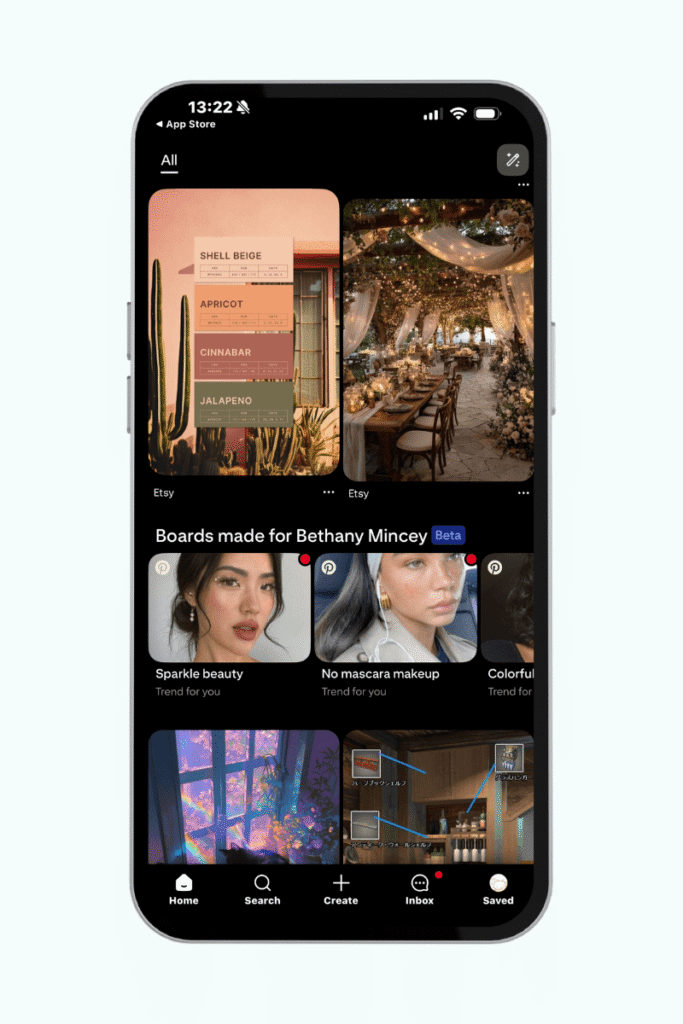
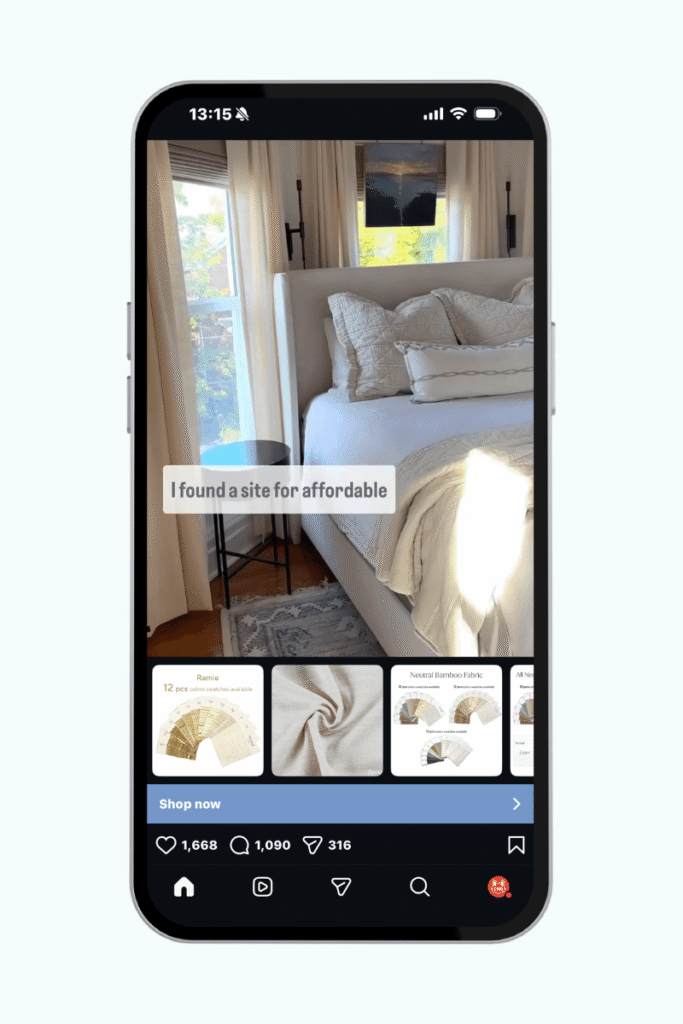
  • Social Media Marketing: Platforms like Instagram, YouTube, and Facebook offer unique opportunities to engage your audience with tailored content, video campaigns, and interactive posts. A multi-platform approach helps ensure you’re not overly dependent on one network. 
  • SEO and Website Optimization: Search engine optimization (SEO) ensures your business is discoverable online by improving your ranking on platforms like Google. A well-optimized website brings in organic traffic and serves as a stable foundation for your digital presence. 
  • Website Development: Your website is often the first impression customers have of your business. A modern, user-friendly design ensures your brand is represented effectively and gives you full control over your online presence. 
  • Email Marketing: Email is a timeless and reliable way to maintain a direct line of communication with your audience. It allows you to share updates, promote offers, and build customer loyalty on your terms. 
  • PPC Advertising: Pay-per-click (PPC) campaigns drive immediate traffic and conversions by targeting specific audiences across platforms like Google Ads. PPC provides measurable results and complements long-term strategies like SEO. 

By combining these channels, you’ll build a marketing strategy that is flexible, effective, and resilient—ready to adapt to any changes in the digital landscape.

Adapting to the Ever-Changing Digital Landscape

The digital world evolves at a rapid pace, and flexibility is key to staying ahead. Platforms rise and fall, algorithms change, and audience behaviors shift—all of which can impact how effectively you reach your customers. By embracing a diversified marketing strategy, you prepare your business to adapt to these changes without losing momentum. A strong, multi-channel presence not only safeguards your brand but also allows you to take advantage of new opportunities as they emerge. Building a robust and adaptable approach today sets the foundation for long-term success tomorrow.

How Curiosity Can Help You Stay Ahead

We take the hassle of managing a diversified marketing strategy off your hands, keeping your business active and thriving in today’s digital landscape. By staying ahead of trends and shifts like these, we ensure your brand remains visible and effective across multiple channels. Let us help you build a resilient online presence so your business never goes dark in the ever-evolving world of digital marketing. Contact us today to get started!

How to Request & Give Access to Google Ads Accounts

Introduction to Google Ads Account Access Management

Google Ads is a powerful platform that enables businesses to create and manage advertising campaigns across Google Search, YouTube, and partner websites. Whether you’re running local service ads or large-scale campaigns, proper account access management is essential for smooth collaboration and security. Granting access to team members, agencies, or collaborators allows them to manage campaigns, monitor performance, and optimize results without sharing sensitive login credentials. Understanding how to securely give access to Google Ads accounts ensures your advertising efforts remain efficient, organized, and protected.

Understanding Google Ads Access Levels

Google Ads offers several access levels to ensure team members and collaborators have the appropriate permissions based on their responsibilities. Here’s a breakdown of each role and when to use it:

  1. Admin:
    Admins have full control over the account, including creating campaigns, managing users, and accessing billing information. This role is ideal for business owners or lead marketers who require complete oversight of the account.
  2. Standard:
    Users with Standard access can create, edit, and manage campaigns but do not have permission to manage users or billing settings. This level works best for team members or agencies focused on day-to-day campaign management.
  3. Billing:
    The Billing role grants users access to view and manage billing details, such as payment methods and invoices. This role is perfect for accountants or finance team members who need billing information but do not require access to campaigns.
  4. Read-Only:
    Read-Only users can view campaign performance, settings, and reports but cannot make any edits. This access level is useful for stakeholders or clients who need insights without the ability to modify campaigns.
  5. Email-Only:
    Email-Only users receive notifications and reports via email but do not have access to the Google Ads dashboard. This role is ideal for team members or executives who only need updates on account activity.

Assigning the correct access level ensures efficient collaboration while safeguarding the security and integrity of your Google Ads account. By thoughtfully matching roles to responsibilities, you empower your team while maintaining control over key account functions.

Step-by-Step Guide to Grant Access to Google Ads

Granting access to your Google Ads account allows team members or agencies to collaborate effectively while ensuring your account remains secure. Follow these steps to grant access:

  1. Log in to Your Google Ads Account
    Go to the Google Ads login page and sign in using your Google credentials.
  2. Navigate to Access and Security
    In the bottom-left corner of your sidebar, click on the Admin icon (gear icon). On the dropdown, select Access and Security. 
Picture of Google Ads backend
  1. Invite a New User
    On the Access and Security page, click the blue plus button to invite new users. Enter the email address associated with the user’s Google account.
Picture of Google Ads backend
  1. Assign the Appropriate Access Level
    Choose the access level that aligns with the user’s responsibilities:
    • Admin: Full access to campaigns, billing, and user management.
    • Standard: Manage campaigns but no access to billing or user settings.
    • Read-Only: View-only access to monitor performance and reports.
    • Billing: Access to billing and payment settings only.
  2. Send the Invitation
    After selecting the role, click Send Invitation. The user will receive an email prompting them to accept access to your account.
  3. Monitor Pending Requests
    You can track the status of invitations under the Access and Security page. Once the user accepts, their role will display as “Active.”

How to Request Access to a Google Ads Account

If you need access to a Google Ads account, requesting it is a straightforward process. Follow these steps to ensure a smooth and professional experience:

  1. Contact the Account Owner
    Reach out to the account owner or admin and explain why you need access. Clearly communicate your role, such as campaign management, reporting, or billing, so they can assign the appropriate access level.
  2. Provide Your Google Email Address
    Share the Google email address associated with your Google account. This is required for the owner to send an invitation through the Google Ads dashboard.
  3. The Account Owner Invites You
    The owner should:
    • Log into their Google Ads account.
    • Navigate to Tools and Settings > Access and Security.
    • Click Invite Users, enter your email, and assign the correct access level.
  4. Accept the Invitation
    You will receive an email with a link to accept access. Alternatively, you can log in to your Google Ads account, navigate to Access and Security, and accept the pending invitation directly.
  5. Confirm Your Role
    Once access is granted, verify that the correct role (Admin, Standard, Read-Only, or Billing) has been assigned to ensure you can perform your responsibilities without any issues.

Troubleshooting Google Ads Access Issues

Managing access to Google Ads accounts is typically smooth, but occasional issues can arise. Here are common problems and solutions to get things back on track:

  1. Not Receiving Access Invitations
    If you haven’t received the invitation email, double-check that the account owner used the correct email address. Ask them to resend the invitation. Check your spam or promotions folder, as access emails can sometimes be filtered.
  2. Incorrect Roles or Permission Errors
    If you don’t have the right permissions to perform tasks, contact the account owner and ask them to review and update your access level. The owner can do this under Tools and Settings > Access and Security.
  3. Issues Accepting Access Invitations
    If you’re unable to accept an invitation, ensure you’re logged into the correct Google account associated with the email that received the invite. Clear your browser cache or try a different browser if the issue persists.
  4. Forgotten or Incorrect Account Login
    If you can’t log in to the Google Ads account, visit the Google Ads Account Login Page and use Google’s account recovery tools to reset your credentials. Ensure you’re using the right email address linked to your access.
  5. Access Still Unresolved?
    For persistent issues, visit the Google Ads Help Center for troubleshooting guides, or contact Google Support directly for further assistance.

By identifying and addressing these common issues, you can ensure seamless access to your Google Ads account and minimize downtime.

Why Proper Access Management is Essential for Google Ads

Properly managing access to your Google Ads account is crucial for both security and efficiency. By assigning clear roles, regularly reviewing permissions, and implementing best practices like two-factor authentication, you can protect your campaigns and ensure smooth collaboration with your team, agencies, or partners. Secure access management not only reduces risks but also keeps your advertising efforts organized and optimized for success. If managing Google Ads access feels overwhelming, let our team take the hassle off your hands. We’ll help you securely manage permissions, ensure the right people have access, and optimize your campaigns so you can focus on achieving your advertising goals. Reach out to us today and let’s get started!

How to Request & Give Access to Google Business Profile

Introduction to Google Business Profile Access Management

Google Business Profile is an essential tool for managing how your business appears across Google Search and Maps. It allows you to showcase your services, hours, location, and reviews, making it a vital resource for businesses of all sizes. Proper access management is critical to ensure that accurate information is displayed and to streamline collaboration with team members, agencies, or partners. Whether you’re granting access to a new manager or requesting access to update a profile, knowing how to manage permissions securely is key to protecting your business’s online presence and ensuring efficient operations.

Understanding Roles in Google Business Profile

Google Business Profile offers three distinct access roles to ensure secure and effective management of your business information:

  1. Primary Owner:
    The Primary Owner has full control over the profile, including the ability to manage all settings, update information, and transfer ownership to another user. This role should be reserved for the individual ultimately responsible for the business’s online presence.
  2. Owner:
    Owners can manage most aspects of the profile, such as updating business details, responding to reviews, and inviting other users. However, they cannot remove the Primary Owner or transfer ownership.
  3. Manager:
    Managers have limited access, allowing them to handle day-to-day tasks like posting updates, editing business information, and replying to reviews, but they cannot manage user permissions or make significant account changes.

Step-by-Step Guide to Grant Access to Google Business Profile

Granting access to your Google Business Profile is a straightforward process that allows you to collaborate securely with team members or partners. Follow these steps to add a user:

  1. Sign In to Your Google Business Profile
    Use your credentials to log in to Google Business Profile and access your account dashboard.
  2. Navigate to the Business Profile Settings
    From the dashboard, click on the three-dot menu in the upper-right corner and select Business Profile settings. Under the settings menu, choose People and access to access the user management section.
Picture of Google Business backend
  1. Click “Add” to Invite New Users
    In the Managers section, click the Add button to invite a user. Enter their email address associated with their Google Account to ensure a smooth invitation process.
Picture of Google Business backend
  1. Assign a Role: Owner or Manager
    Select the appropriate role based on the user’s responsibilities:
    • Owner for users who need broader control over the profile.
    • Manager for those handling daily updates and interactions, such as responding to reviews.
  2. Assign roles carefully to maintain profile security.
  3. Send the Invitation and Review Pending Requests
    Click Send to dispatch the invitation. The invited user will receive an email prompting them to accept. You can monitor the status of pending requests in the same Managers section.

How to Request Access to a Google Business Profile

If you need access to an existing Google Business Profile, you can request it directly through Google. Follow these steps to initiate the process:

  1. Search for the Business
    Use Google Search or Google Maps to locate the business you wish to manage. Ensure you’re signed in to your Google Account.
  2. Click “Claim this Business”
    On the business profile, click the Claim this business or Own this business? option. This will direct you to a series of prompts to verify your connection to the business.
  3. Request Access if the Profile is Already Claimed
    If the profile has already been claimed, you’ll see an option to Request access. Click this and fill out the required form, specifying your role and the reasons you need access.
  4. What Happens Next?
    The current owner of the profile will receive your request and can choose to grant or deny access. If granted, you’ll receive an email notification, and your access will be activated based on the assigned role.

Best Practices for Managing Google Business Profile Access

Effectively managing access to your Google Business Profile ensures the security of your business information and streamlines collaboration. Here are some best practices to follow:

  1. Regularly Review and Update Access Permissions
    Periodically audit the list of users with access to your profile. Remove individuals who no longer need access, such as former employees or outdated collaborators. Keeping the list current minimizes unnecessary risks.
  2. Assign Roles Based on Responsibilities
    Carefully choose access roles that align with each user’s responsibilities. For example, assign the Manager role for team members handling updates and customer interactions, while reserving Owner roles for those overseeing strategic decisions. This approach reduces the chance of errors or unauthorized changes.
  3. Enable Two-Factor Authentication
    Add an extra layer of security to your Google Account by enabling two-factor authentication. This step ensures that even if login credentials are compromised, unauthorized access can be prevented.

Troubleshooting Access Issues in Google Business Profile

Managing access to a Google Business Profile can sometimes present challenges, but most issues have straightforward solutions. Here’s how to address common problems:

  1. Not Receiving or Sending Invitations
    If an invited user doesn’t receive the email, double-check that the email address is correct and associated with their Google Account. Encourage the user to check their spam or promotions folder. If the issue persists, resend the invitation or contact Google Support.
  2. Access Request Rejections
    If your request to access a profile is denied, follow up with the current owner to clarify your need for access. Be professional and specific about the role you intend to play. If communication fails, you may need to create a new listing or escalate the issue to Google Support.
  3. Transferring Ownership to a New Primary Owner
    Only the Primary Owner can transfer ownership of a Google Business Profile. This can be done by navigating to the Managers section, selecting the new owner, and assigning them as the Primary Owner. The original owner must then confirm the transfer.
  4. Claiming an Inactive Profile
    If you attempt to claim a profile that someone else has ownership of, and they don’t respond to your access request, Google provides a grace period for the current owner to act. If no action is taken within the specified timeframe, you’ll be allowed to claim the profile and take ownership. This process ensures inactive profiles can still be managed by active business representatives.
  5. Contacting Google Support
    For unresolved issues, visit Google Business Profile Help for guidance. You can also contact Google Support directly for complex problems, such as recovering an account or dealing with disputed ownership.

Why Proper Access Management is Critical for Your Business

Effectively managing your Google Business Profile access is essential to protecting your business’s online presence and ensuring seamless collaboration. By assigning roles carefully, regularly reviewing permissions, and implementing security measures like two-factor authentication, you can safeguard your profile while enabling your team to work efficiently.

If managing access feels overwhelming, let our team take this off your plate. We specialize in helping businesses securely manage their Google Business Profiles, ensuring accurate information and streamlined collaboration. Reach out today to learn how we can help you focus on growing your business while we handle the details.

How to Request & Give Access to Google Merchant Center

Unlocking Collaboration with Google Merchant Center Access

Google Merchant Center is an essential tool for managing product listings and advertisements across Google platforms, making it a cornerstone for businesses engaging in e-commerce. Whether you’re coordinating with a marketing team, working with an agency, or adding collaborators, the ability to grant and request access ensures seamless workflows and improved account security. Understanding how to manage access to your Google Merchant Center account not only safeguards sensitive data but also empowers your team to work effectively. In this guide, we’ll explore the steps and best practices for securely managing access.

Google Merchant Center Access Levels Explained

Google Merchant Center offers several access levels to ensure users have the appropriate permissions for their roles while maintaining account security. Here’s an overview of the available access types:

  1. Admin Access: Grants full control over the account, including managing users, editing settings, and overseeing all activity. This level should be reserved for those responsible for account ownership and high-level decision-making.
  2. Standard Access: Provides the ability to view and manage product data, run campaigns, and perform most account tasks, but without the ability to manage other users or critical settings.
  3. Email-Only Access: Allows users to receive email notifications about account activity, such as performance updates or policy issues. This level is ideal for stakeholders who need updates but don’t require hands-on access.
  4. Performance and Insights Access: Grants view-only permissions to reports and performance metrics, making it perfect for team members who need analytics access without editing rights.

Understanding these access levels helps you delegate responsibilities effectively while maintaining the security and integrity of your Google Merchant Center account.

Step-by-Step Guide to Giving Access in Google Merchant Center

Granting access to your Google Merchant Center account is a straightforward process that ensures the right team members or partners can manage product listings and campaigns efficiently. Follow these steps to securely add a user:

  1. Log in to Your Google Merchant Center Account
    Use your credentials to access your account at the Google Merchant Center login page.
  2. Go to Account Access Settings
    In the top-right corner of the dashboard, click on the Gear icon. Under the “Settings” section, select People and access.
  3. Add a New User
    Click on the Add user button and enter the email address of the person you want to add. Ensure the email matches the user’s Google Account.
    1. You can select to either add people as a user or email-only. From here, you can then assign the user either Admin or Standard access. 
Backend Dashboard of Google Merchant Center
  1. Send the Invitation
    Click Send Invitation to grant access. The user will receive an email to accept the invitation and gain access to your account.

How to Request Access to a Google Merchant Center Account

If you need access to a Google Merchant Center account to manage products, monitor performance, or assist with campaigns, requesting access is a simple process. Follow these steps to ensure a smooth and professional experience:

  1. Communicate with the Account Owner
    Start by reaching out to the account owner or admin. Explain why you need access and the tasks you’ll be handling, such as managing product data or reviewing performance metrics.
  2. Provide Your Google Account Email
    Share the Google Account email you’ll use to access the Merchant Center. Ensure it’s an active and verified Google Account to avoid issues during the invitation process.
  3. Specify the Required Access Level
    Clearly outline the level of access you need: Admin for full control, Standard for product management, Email-only for notifications, or Performance and Insights for view-only permissions. This helps the account owner assign the correct role without confusion.
  4. Guide the Account Owner to Grant Access
    Refer them to the steps in Section 2:
    • Log in to their Merchant Center account.
    • Navigate to Tools and Settings > Account access.
    • Add your email, select the appropriate access level, and send the invitation.
  5. Accept the Invitation
    Once the owner sends the invitation, check your email for the notification. Click the provided link and sign in to your Google Account to accept access.

Best Practices for Managing Google Merchant Center Access

Effectively managing access to your Google Merchant Center account is critical to safeguarding your data and ensuring efficient collaboration. Follow these best practices to maintain control and security:

  1. Regularly Audit User Access
    Periodically review the list of users with access to your account. Remove individuals who no longer require access, such as former team members or partners whose projects have ended. Keeping the user list up-to-date minimizes potential risks.
  2. Update or Revoke Access When Roles Change
    If a user’s responsibilities shift, adjust their access level to match their new role. For example, downgrade permissions for users who no longer need administrative access or revoke access entirely for inactive users.
  3. Enable Two-Factor Authentication
    Protect your account with an added layer of security by enabling two-factor authentication. This ensures that even if login credentials are compromised, unauthorized access is prevented.
  4. Assign Roles Based on Responsibilities
    Grant users the least privilege necessary to perform their tasks. For instance, provide Standard access for product management or Performance and Insights access for analytics-only roles. This reduces the risk of accidental changes or unauthorized actions.

Troubleshooting Google Merchant Center Access Issues

While managing Google Merchant Center access is generally straightforward, users can sometimes encounter challenges. Here are common issues and practical solutions to resolve them:

  1. Not Receiving Invitation Emails
    If an invited user doesn’t receive the access email, double-check the email address entered during the invitation process. Ask the user to check their spam or promotions folder, as the email may have been filtered. If the issue persists, resend the invitation.
  2. Access Level Discrepancies
    Users may find they don’t have the permissions they need to complete tasks. In this case, the account admin should review the user’s assigned access level under Tools and Settings > Account Access and adjust it to the appropriate role (e.g., Admin, Standard, Performance and Insights).
  3. Issues with Linking Google Accounts
    Problems may arise when trying to link a Google Account to Merchant Center. Ensure the user is logged into the correct Google Account associated with their email address. Logging out and back in can often resolve connection issues.
  4. General Troubleshooting and Support
    For persistent issues, accessing Google Merchant Center Help is a good starting point. You can also contact Google Support for account-specific problems or technical errors.

Why Access Management in Google Merchant Center Matters

Managing access to your Google Merchant Center account is key to protecting your business while fostering efficient collaboration. Assigning roles thoughtfully, regularly reviewing permissions, and utilizing best practices like two-factor authentication can help you maintain security and streamline operations. Proper access management not only protects sensitive information but also ensures your team or partners can work effectively without unnecessary complications.

If managing access feels like a hassle, let our team take the headache off your plate. We specialize in Google Merchant Center management and e-commerce optimization, so you can focus on growing your business while we handle the details. Reach out today to learn how we can help!

How to Give and Request Access to Instagram

How Sharing Instagram Access Can Benefit Your Business or Brand

Instagram has become an essential platform for businesses and influencers to connect with their audience, build brand awareness, and drive engagement. For growing businesses, managing an Instagram account often requires collaboration with marketing teams, social media managers, or agencies. Sharing account access helps streamline content management and strategy execution. Whether you’re giving access to your team or requesting access as a business partner, understanding how to manage and share Instagram accounts effectively is crucial. This guide will walk you through the steps for giving and requesting access to an Instagram business account securely and efficiently.

Why You Might Need to Share Your Instagram Account

As your business grows, managing an Instagram account often becomes a team effort. Collaboration is key to running successful marketing campaigns, staying on top of engagement, and ensuring consistent brand messaging. Whether you’re working with agencies, social media managers, or influencers, granting account access allows multiple users to contribute effectively without compromising security. Sharing access ensures smooth workflows for content scheduling, customer engagement, and analytics tracking. By learning how to share your Instagram account the right way, you can delegate tasks while maintaining control of your brand’s voice and strategy.

How to Give Someone Access to Your Instagram Account

Sharing access to your Instagram business account through Meta Business Suite is simple. Follow these steps:

  1. Convert to an Instagram Business Account
    If your account isn’t already a business account, go to your profile and tap in the upper right corner. Tap “Settings and privacy”, then “Account type and tools”, and Switch to professional account.

    Convert to an Instagram Business Account

  2. Open Meta Business Suite
    To manage access, open the Meta Business Suite desktop app and make sure you’re viewing the correct business account. Meta Business Suite is where you’ll link and manage your Instagram.

    Open Meta Business Suite

  3. Add Your Instagram Account
    In the sidebar, click the gear icon for “Settings,” then under Accounts select “Instagram accounts”. From this menu, hit the blue “Add” button in the top right corner and follow the prompts.

    Add Your Instagram Account

  4. Add Users to Your Instagram Account
    After your Instagram account is linked, from the same Settings menu, navigate to the “Users” section and select “People” to add users, or “Partners” to add agencies. Assign them roles like Admin, Editor, or Analyst, depending on the level of access they need.

    Add Users to Your Instagram

  5. Manage User Permissions
    You can edit or remove user access at any time through Meta Business Suite, ensuring that you stay in control of who can manage your Instagram business account.

How to Request Access to an Instagram Account

If you’re a manager, agency, or collaborator needing access to a client’s Instagram account, follow these steps to request access professionally:

  1. Reach Out to the Account Owner
    Start by contacting the account owner or administrator directly, explaining why you need access and the tasks you’ll be managing. Be clear about the level of access required (e.g., content scheduling, analytics review, engagement).
  2. Ensure They Use Meta Business Suite
    Ask the account owner to confirm that their Instagram account is connected to Meta Business Suite. If it isn’t, guide them through the steps to add the account (see the previous section).
  3. Request Access Through Meta Business Suite
    Once the Instagram account is set up in Meta Business Suite, the owner can add you by going to the “Business Assets” section, selecting “People,” and adding you as a user. The owner will need your email or Meta Business Suite details to grant access.
  4. Clarify the Permissions You Need
    Be specific about what level of access you require. Common permissions include Admin (full control), Editor (content management), and Analyst (viewing performance metrics). Ensure the owner sets these roles appropriately to match your responsibilities.
  5. Log In to Confirm Your Access
    Once the owner grants access, log in to Meta Business Suite and confirm your role. You should now have the necessary permissions to manage the Instagram account based on the access provided.

Best Practices for Account Security

When sharing access to your Instagram account, it’s crucial to prioritize security to protect your business and personal information. Here are some best practices to ensure your account remains safe:

  1. Enable Two-Factor Authentication
    Two-factor authentication adds an extra layer of protection by requiring a security code along with your password during login. To enable this, go to your Instagram settings under “Security” and select “Two-Factor Authentication.”
  2. Manage User Access Carefully
    Only give access to trusted team members or partners, and regularly review who has permissions to your account. Revoke access for users who no longer need it, especially after a project is completed or a team member leaves.
  3. Use Strong Passwords
    Always use a strong, unique password for your Instagram business account. Avoid sharing your password directly, relying on Facebook Business Manager to manage users securely instead.
  4. Monitor Account Activity
    Keep an eye on any unusual activity, such as unapproved posts or messages. Instagram allows you to view active sessions under your account’s security settings, where you can log out of unknown devices.
  5. Revoke Access When No Longer Needed
    It’s a good habit to remove users who no longer need access, especially after collaborations end. This can be done through Facebook Business Manager or directly from your Instagram settings.

Following these steps helps ensure your Instagram account stays secure while still allowing collaborative access.

Troubleshooting Common Issues

When managing access to an Instagram account, you may encounter some common problems. Here are a few issues you might face and how to solve them:

  1. Trouble Adding Users to Facebook Business Manager
    If you’re having difficulty adding someone to your Instagram account via Facebook Business Manager, double-check that your Instagram account is properly linked to your Facebook Business Manager. To do this, navigate to the “Accounts” section in Business Manager and ensure the Instagram account is connected.
  2. Access Revocation Not Working
    If you’re unable to revoke access for a user, make sure you have the correct permissions to remove them. Only Admins can revoke access from Facebook Business Manager. If the issue persists, try refreshing your Business Manager dashboard or logging in from a different device.
  3. Incorrect Permissions for Users
    Sometimes users may not be able to perform the tasks they were assigned because of incorrect permissions. Revisit the roles assigned in Facebook Business Manager to ensure that the user has the necessary permissions (Admin, Editor, Analyst, etc.) for the tasks they need to manage.
  4. Issues with Instagram Account Linking
    If your Instagram account isn’t linking correctly with Facebook Business Manager, make sure that your Instagram account is set up as a business account. If it’s still not working, try disconnecting and reconnecting the account through Business Manager, or contact Instagram support for further help.

By following these solutions, you can resolve most common issues when managing access to your Instagram business page.

Safely Sharing Access to Grow Your Instagram Presence

Sharing access to your Instagram business account is essential for collaboration, whether you’re working with a team, agencies, or influencers. By securely giving and managing access, you can streamline your Instagram strategy while keeping control of your account. Remember to follow best practices like using Facebook Business Manager, enabling two-factor authentication, and regularly reviewing user permissions to maintain the highest level of security. If you’re unsure how to set up or manage your Instagram account, don’t hesitate to reach out for more guidance. Secure, strategic access sharing is the key to expanding your Instagram presence and maximizing its potential for your business.

How to Get Facebook Ad Account and Page Access

The Importance of Facebook Ad Account and Page Access Management

Effectively managing access to your Facebook ad account and business page is vital for businesses looking to enhance their online presence. Whether you’re collaborating with agencies, social media managers, or team members, setting up and controlling access ensures smoother workflows, protects account security, and allows the right people to manage ad campaigns. With Facebook’s Business Portfolios, businesses can grant controlled access without sharing passwords, keeping permissions both secure and specific to each role. This guide walks you through the steps to give or request access safely.

Why You Might Need Facebook Ad Account and Page Access

For many businesses, sharing access to Facebook ad accounts and business pages is essential for efficient and secure management. When working with agencies, managing multiple social media channels, or involving team members in digital marketing, giving access can streamline operations and ensure campaigns run smoothly. By granting specific roles, such as Admin or Advertiser, Facebook’s Business Portfolios allows businesses to delegate responsibilities without compromising security. This setup is especially useful for project-based management, where tasks like ad creation, content scheduling, and analytics review can be shared without exposing sensitive account information.

How to Give Access to Your Facebook Ad Account and Page

  1. Open Meta Business Suite
    Go to Meta Business Suite on your desktop and ensure you are viewing the correct business page.
Backend Dashboard of Meta Business Suite
  1. Access Business Settings
    From the sidebar, click on Settings and then select Business Assets. This section is where you manage account permissions for your business’s Facebook pages and ad accounts.
Backend Dashboard of Meta Business Suite
  1. Add Users to Your Ad Account and Page
    Click Add Assets and choose the type of asset (e.g., Facebook Page and/or Ad Account). Enter the user’s email associated with their Meta account.
  1. Assign Roles and Permissions
    When adding a user, you’ll have the option to select their role:
    • Admin – Full control, including account management and user permissions.
    • Advertiser – Can create, edit, and manage ads but lacks admin permissions.
    • Analyst – View-only access for ad performance and analytics.
  2. Choose the appropriate role based on the level of access they need.
  3. Confirm and Send Invite
    Review the permissions and send an invite. The user will need to accept the invite to gain access to the account.

How to Request Access to a Facebook Ad Account and Page

If you’re an agency, manager, or team member needing access to a Facebook ad account or business page, follow these steps to request access professionally:

  1. Contact the Account or Page Owner
    Start by reaching out to the owner directly, explaining the tasks you’ll be managing and the permissions you need. Clear communication helps ensure they understand why access is necessary and which role (e.g., Admin, Advertiser, Analyst) suits your responsibilities.
  2. Request Access Through Meta Business Portfolios
    Ask the owner to go to Meta Business Suite, select Settings, then Business Assets. They can then select the ad account or business page and use the Add People function to send an invitation to your Meta account email.
  3. Verify Your Role and Permissions
    Once invited, confirm that the correct permissions are assigned, as different roles offer varied levels of access to tools like ad creation, performance analysis, and audience insights.
  4. Accept the Access Invitation
    You’ll receive a notification or email to accept the invitation. Once you accept, you can access the ad account or business page in Meta Business Suite with the assigned permissions.

Following these steps ensures a secure, streamlined process for requesting and managing access to a Facebook ad account or page, allowing you to focus on effectively managing your tasks.

Best Practices for Account Security

When managing access to your Facebook ad account and business page, it’s essential to prioritize security to protect your business information. Here are some best practices:

  1. Enable Two-Factor Authentication
    Adding two-factor authentication to your Meta account provides an extra layer of security. This requires a verification code during login, reducing the risk of unauthorized access.
  2. Regularly Review User Access
    Periodically check the list of users who have access to your ad account and page. Remove access for users who no longer need it, especially if their role was project-specific or temporary.
  3. Limit Access to Essential Users Only
    Only grant access to those who actively need it for daily operations. By limiting permissions, you reduce exposure to potential security risks.
  4. Use Strong, Unique Passwords
    Ensure your Meta account password is strong and unique, and avoid reusing passwords across platforms. This helps protect your business accounts from password-related vulnerabilities.

Following these steps can help maintain the security of your Facebook ad account and business page, ensuring your business information remains protected.

Troubleshooting Common Access Issues

Managing access to a Facebook ad account or business page isn’t always straightforward, and you may encounter issues along the way. Here are some common problems and solutions:

  1. Incorrect Roles Assigned
    If a user can’t perform certain tasks, check their assigned role in Meta Business Portfolios. Ensure the role matches their responsibilities (e.g., Advertiser for ad management or Analyst for viewing insights) and adjust as necessary.
  2. Failed Access Requests
    Sometimes, access requests may not go through due to a technical glitch or an outdated Meta account. Try resending the invitation, double-checking the email, or clearing your browser cache. If the problem persists, reaching out to Facebook support may help resolve it.
  3. Linking Errors Between Accounts
    Linking your Facebook and Instagram accounts or connecting assets within Meta Business Portfolios can sometimes fail. Make sure each account is set up correctly and that you have the necessary permissions to link them. Logging out and logging back in may also resolve these issues.
  4. Access Not Visible After Acceptance
    If access doesn’t appear in Meta Business Suite after accepting an invitation, refresh the platform or try accessing it on a different device. Sometimes permissions take a few minutes to update.

If you encounter ongoing issues, don’t hesitate to reach out to Facebook’s support team for further assistance. Addressing these common obstacles can help ensure smooth access and management for your Facebook ad account and page.

Securing Access to Your Facebook Ad Account and Page

Effectively managing access to your Facebook ad account and business page is essential for protecting your business and ensuring smooth collaboration. By using Meta Business Portfolios, you can safely share permissions with team members, agencies, or collaborators without compromising your account’s security. Following best practices, like regularly reviewing user access and enabling two-factor authentication, helps safeguard your account and keeps it accessible only to those who need it.If you need expert guidance on managing Facebook ad accounts, creating campaigns, or optimizing social media strategies, our marketing agency is here to help. We specialize in secure, results-driven advertising solutions that make the most of your social media presence. Reach out today to elevate your digital marketing efforts with confidence and peace of mind.

Slogans that Sell: What is a Slogan and How to Create One

Think about your favorite brands. Chances are, you can recall their slogans without even trying—whether it’s “I’m Lovin’ It” or “Just Do It.” These memorable phrases have a way of sticking with you, becoming part of a brand’s identity. While you can bet these big brands spent plenty of time and effort finding the right words, a great slogan is definitely within your reach. Even better, it doesn’t have to be world-famous to make a lasting impact on your audience.

In this guide, we’ll break down everything you need to know about slogans—what they are, why they matter, and how to make a slogan that perfectly captures your business’s voice.

What is a Slogan?

A slogan is a short, memorable phrase that communicates the essence of your business. Think of it as the verbal logo for your brand—it quickly tells people what you’re about, what makes you unique, and what you offer.

Slogans often capture the feeling or benefit you want people to associate with your business. Whether it’s playful, inspiring, or direct, a slogan distills your brand identity into just a few impactful words. 

Why a Slogan Matters for Your Business

The Power of a Memorable Message

We bet you’ve heard of “Got Milk?” but did you know that this slogan actually helped change consumer behavior in a big way? The California Milk Processor Board was concerned about declining milk sales and how to make milk relevant to Americans again. The answer? A slogan. “Got Milk?” took a boring product and made it memorable—popular even. That’s the power of a strong slogan: it has the potential to shift perceptions and even drive action! 

While your slogan may not need to work that hard, it still serves key business goals by:

  • Making your brand stand out and be easily remembered
  • Building a connection with your audience by relating to their needs or emotions
  • Creating a cohesive brand identity across all marketing channels

What Makes a Good Slogan?

Crafting a good slogan is about more than just finding the right words—it’s about finding the right words that resonate with your audience and capture your brand’s essence. Here are some key elements of a great slogan:

  • Concise & Clear: Every word counts. A great slogan is short and to the point—no fluff, just impact. Example: Subway’s “Eat Fresh” says everything you need to know in just two words.
  • Memorable: A good slogan sticks in people’s minds. Using rhythm, rhyme, or even a clever play on words can make it more memorable. “Snap, Crackle, Pop” by Rice Krispies is catchy and fun to say, making it easy to remember.
  • Reflects Brand Voice: Your slogan should align with your brand’s tone and identity. Is your business playful, serious, bold, or nurturing? L’Oréal’s “Because You’re Worth It” perfectly embodies its empowering, beauty-forward brand voice.

How Long Should a Slogan Be?

One of the biggest challenges in creating a slogan is keeping it concise. It’s tempting to pack in as much information as possible, but the most memorable slogans are brief. So, how long should a slogan be? A good rule of thumb is to aim for 3-7 words. This range is usually long enough to convey your message but short enough to stay memorable.

The real goal is to say only what matters—no more, no less.

How to Make a Slogan

Wondering where to start in crafting your business slogan? Try this:

  1. Know Your Audience & Goals
    Before you start brainstorming, understand who you’re speaking to and what you want them to remember about your brand. Are you targeting families, athletes, or professionals? What message do you want to leave them with?
  2. Brainstorm with Keywords
    Write down a list of words or phrases related to your brand, product, or audience. Think about how you want people to feel when they hear your slogan—empowered, happy, excited?
  3. Keep It Simple & Direct
    The best slogans are clear and easy to understand. Focus on the core message you want to deliver, and avoid overcomplicating it. A simple phrase is easier to remember and share.
  4. Use Active Language
    Choose words that inspire action and emotion—strong verbs can make your slogan more dynamic. Words like “Discover,” “Create,” “Empower,” or “Transform” add energy and a sense of movement that engages your audience.
  5. Test & Refine
    Once you’ve narrowed down your options, test them out. Ask friends, family, or potential customers for their reactions. If it doesn’t resonate, don’t be afraid to make tweaks until it feels just right.

Quick Tips if You Get Stuck:

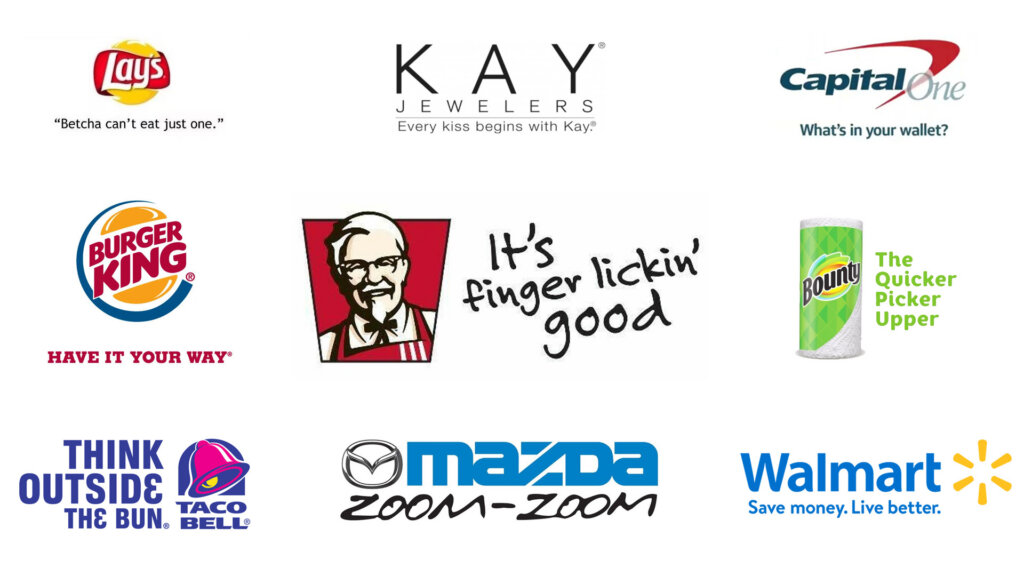
  • Use a twist on common sayings to connect quickly. “Have It Your Way” (Burger King)
  • Play with sounds and rhythm for memorability. “Zoom Zoom” (Mazda)
  • Tie in your business name for instant brand recognition. “Every Kiss Begins with Kay”
  • Spark emotion or imagery to make it relatable. “Finger Lickin’ Good” (KFC)
  • Prompt a question to spark curiosity. “What’s in Your Wallet?” (Capital One)
  • Motivate your audience to take action. “Save Money. Live Better.” (Walmart)
  • Highlight the benefit your business provides. “The Quicker Picker Upper” (Bounty)
  • Encourage your audience to see your product or industry differently: “Think Outside the Bun” (Taco Bell)
  • Challenge your audience with a playful dare to keep them engaged. Betcha Can’t Eat Just One” (Lay’s)

Think you know the most recognizable slogan in the U.S.?
Go ahead, take a guess.

If you thought of KFC’s “Finger Lickin’ Good,” you’re right! According to a study by Upwave, it tops the charts with an impressive 87.9% recognition rate.

Ready to Craft Your Perfect Slogan?

Sure, your business slogan might not reach “Finger Lickin’ Good” fame—but that doesn’t mean it can’t pack a punch.

If you’re feeling stuck or want some help finding just the right words, Curiosity Marketing Group is here for you. Let’s brainstorm and create a slogan that feels true to your brand.

10 Tips for Google Ads Budget Management

Understanding the Importance of Google Ads Budgeting

Managing your Google Ads budget is one of the most critical aspects of running a successful PPC campaign. Without proper budgeting, you risk either overspending and depleting your resources too quickly or underinvesting and not getting the full benefit of your ads. Knowing how to allocate your funds effectively helps ensure your campaign is set up for long-term success, maximizing your return on investment (ROI).

Why Budget Management Matters in PPC Campaigns

Budget management directly impacts the overall performance and success of your Google Ads campaigns. Properly allocating your budget allows you to balance cost with results, ensuring that you’re not overspending on clicks that aren’t converting. It also helps you scale your campaigns based on real performance data, ensuring that every dollar spent contributes to meaningful outcomes, whether it’s leads, conversions, or brand awareness. When your budget is managed well, you’ll see better ROI, more predictable results, and fewer wasted clicks.

Common Challenges in Budgeting for Google Ads

Budgeting for Google Ads can be tricky, especially if you’re new to PPC or working with limited resources. Here are some common challenges businesses often face:

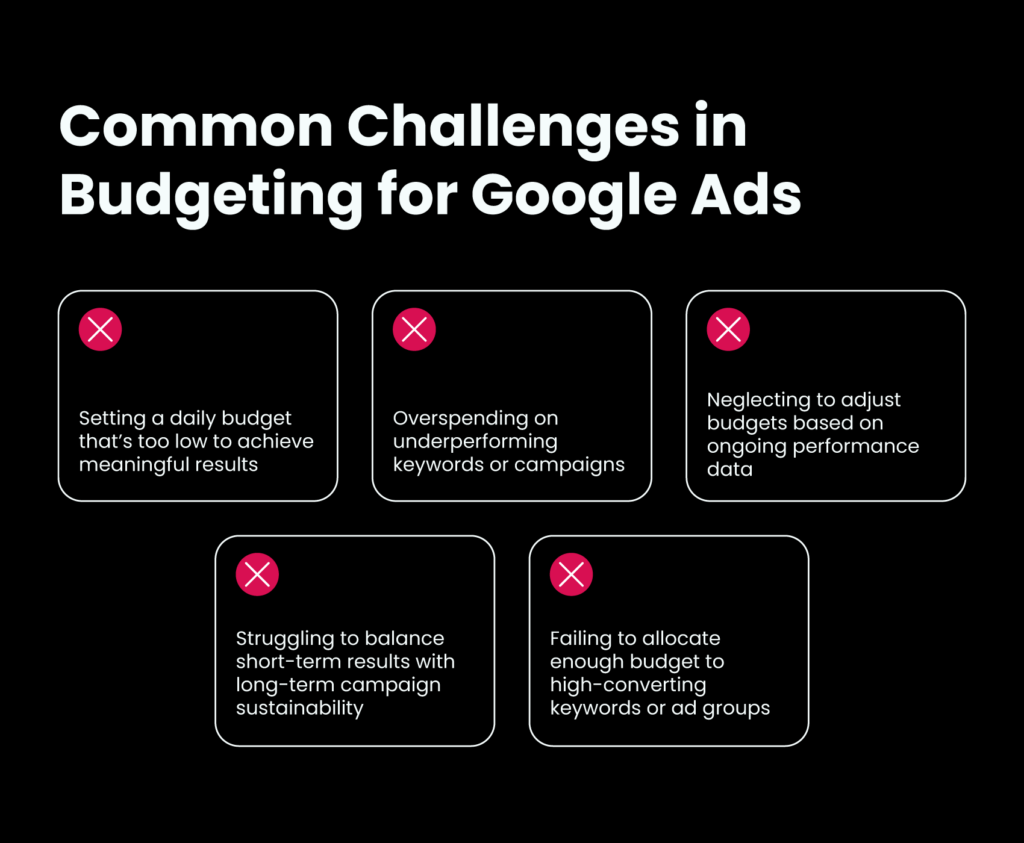
  • Setting a daily budget that’s too low to achieve meaningful results
  • Overspending on underperforming keywords or campaigns
  • Neglecting to adjust budgets based on ongoing performance data
  • Struggling to balance short-term results with long-term campaign sustainability
  • Failing to allocate enough budget to high-converting keywords or ad groups

Tip #1: Set Clear Campaign Goals

Your Google Ads budget should align with your campaign goals. Whether you’re focusing on brand awareness or lead generation, each objective requires a different budget strategy. For example, brand awareness campaigns may need a broader budget to reach more people, while lead generation should focus more on cost-per-conversion and targeting specific audiences.

Tip #2: Start with a Realistic Daily Budget

Using a budget planner can help you set a daily budget that matches your goals without overspending. By estimating how much you’re willing to spend each day, you can ensure your ads stay live throughout the campaign without exhausting your budget too soon. This approach also provides room for adjustments as you gather performance data.

Tip #3: Leverage Google Ads Budget Planner

The Google Ads Budget Planner helps you allocate resources efficiently across multiple campaigns. Use it to forecast spending and performance, ensuring you’re distributing your budget where it will have the most impact. This tool also allows for easy adjustments based on campaign priorities and goals.

Tip #4: Focus on High-Performing Keywords

Identifying and prioritizing high-converting keywords can help you get more value from your budget. Allocate more funds to these top performers while reducing spend on keywords that aren’t driving results. This targeted approach ensures that your budget is used effectively to generate the most conversions.

Tip #5: Use Dayparting for Budget Efficiency

Dayparting allows you to allocate your budget during peak times when your audience is most active. By adjusting your ad schedule, you can improve efficiency and avoid spending during off-hours, ultimately lowering costs while maximizing visibility during key periods.

Tip #6: Monitor and Adjust Campaign Budgets Regularly

Regularly monitoring your campaign budget ensures that you’re staying on track and optimizing performance. Use tools like Google Ads’ budget reports to assess what’s working and where adjustments are needed. This proactive approach helps you avoid overspending while making sure you capitalize on high-performing areas.

Tip #7: Take Advantage of Automated Rules

Automated rules in Google Ads allow you to make budget adjustments based on campaign performance without constant manual intervention. Set rules to increase budget for high-performing ads or pause low-performing ones, helping you manage overspending while optimizing for results.

Tip #8: Optimize Ad Spend Across Campaigns

To get the most out of your budget, avoid putting all your resources into one campaign. Instead, spread your budget across multiple campaigns to diversify your efforts and maximize overall results. This balance allows you to test different strategies and focus more spend on top-performing campaigns over time.

Tip #9: Maximize Your Budget with Ad Extensions

Ad extensions, such as callouts or site links, can increase the visibility and effectiveness of your ads without requiring additional budget. By providing more information and clickable options, ad extensions improve your click-through rate and overall campaign efficiency, giving you more value for your spend.

Tip #10: Review Competitor Ad Budgets

Analyzing your competitors’ ad budgets can offer valuable insights into how you should allocate your own. Use tools like Auction Insights or third-party platforms to review competitor spending and adjust your strategy accordingly. Responding to competitor tactics can help you stay competitive while making the most of your budget.

Optimize and Expand Your Strategy

Effective Google Ads budget management requires continuous learning and regular adjustments. As performance data comes in, it’s essential to refine your strategy, reallocating funds to high-performing areas and experimenting with new approaches to stay competitive. By consistently optimizing your budget, you can maximize ROI and long-term campaign success.

In addition to PPC, services like SEO and content marketing can complement your digital advertising efforts. Combining these strategies allows for a more holistic approach to driving traffic and improving your overall digital presence. 

And if this seems like a lot, let us help with your Google Ads management—whether it’s optimizing your existing ads or creating new campaigns, we’ve got you covered. Reach out to us today to get started!

Copywriting vs Content Writing: Why the Difference Matters for Your Business

Did you know that copywriting and content writing aren’t the same thing? It’s okay if you didn’t—they’re often used interchangeably, and we’re not judging. But here’s the thing: while all copy is content, not all content serves the same purpose. Understanding the difference between copywriting vs content writing can transform your business’s strategy by helping you use words to drive action or build lasting relationships. Let’s dive into why this matters.

The Difference In a Nutshell

So, what’s the difference between these seemingly similar terms anyway? It all boils down to purpose:

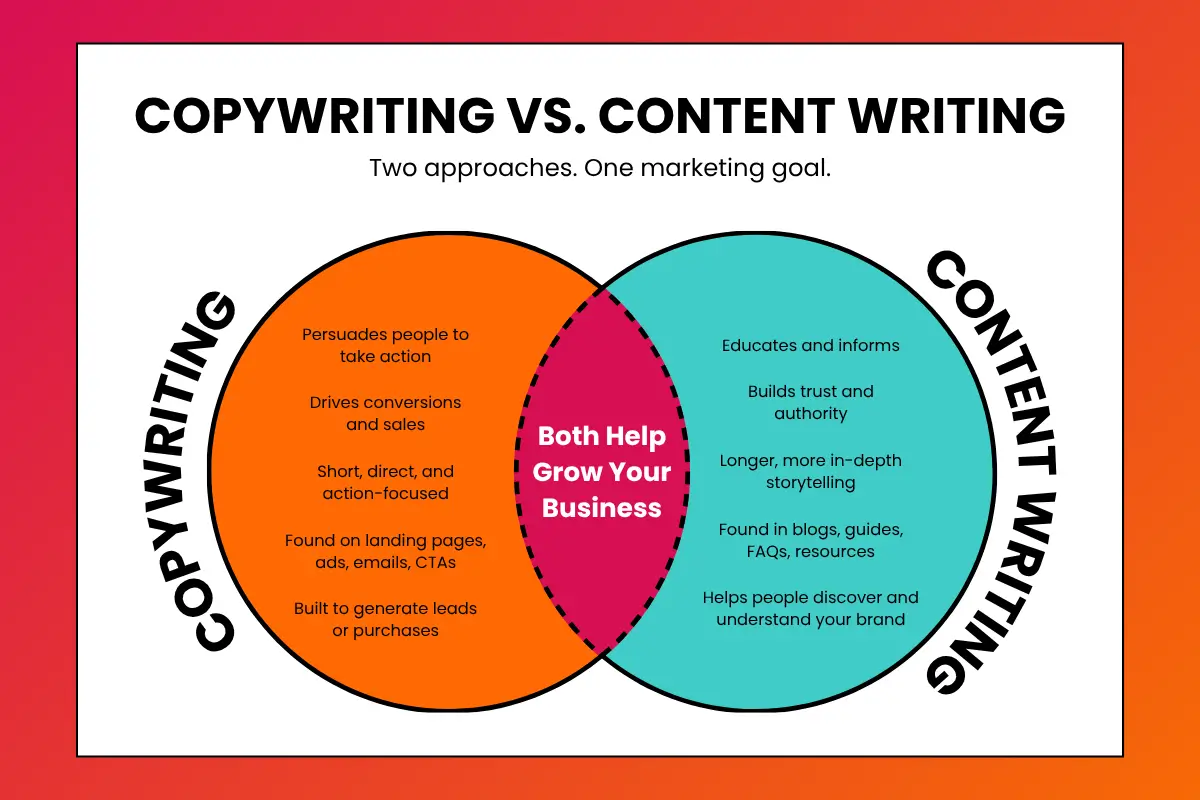
  • Copywriting = Persuading your audience to take action.
  • Content Writing = Building relationships and educating over time.

Quick takeaway: Copywriting is about driving sales, while content writing nurtures trust and engagement with your audience.


Why It Matters: Words as a Business Tool

Words Do More Than Fill Space

So, if businesses need to use words to sell, educate, and connect, why does it even matter to distinguish between copywriting and content writing at all? It might seem like a small thing, but understanding the difference ensures you’re using the right tool for the right job. Here’s why it’s important:

  • Words are critical to communication, education, selling, and building connections.
  • Copywriting and content writing are strategic tools businesses use to achieve different goals.
  • Knowing when to use each approach ensures that your business speaks effectively to your audience, which ultimately boosts your ROI.

What is Copywriting?

The Art of Persuasion

At its core, the purpose of copywriting is simple: to convince readers to act—and fast. Whether it’s purchasing a product, signing up for a service, or clicking a link, copywriting pushes the audience toward a clear goal.

Common Types of Copy:

Copywriting comes in many forms, depending on the goal and platform. Here are some of the most common types:

  • Ads (digital, print, social media)
  • Sales pages
  • Email campaigns
  • Product descriptions
  • Calls to action (CTAs)
  • Landing pages

Each type of copy aims to capture attention and prompt action in a concise, targeted way. But what makes it so effective?

Key Characteristics:

Great copywriting often follows specific principles. It tends to:

  • Use action-oriented language: Strong verbs and persuasive phrases (e.g., “Buy now,” “Sign up today”) motivate readers.
  • Stay short and concise: Copywriting is typically brief, delivering a punchy message that leads directly to the desired action.
  • Create urgency: Techniques like urgency or FOMO (Fear of Missing Out) are commonly used to prompt immediate decisions (e.g., “Limited time offer,” “Only a few left”).

Why It Matters for Businesses:

For businesses, copywriting is more than just words—it’s a conversion-driving tool:

  • It directly impacts sales by grabbing attention and turning potential customers into buyers.
  • When done well, copywriting can maximize ROI, increasing click-through rates, conversions, and overall customer engagement.

What is Content Writing?

The Power of Building Relationships

While copywriting is all about quick conversions, content writing takes a longer-term approach. Its purpose is to inform, educate, entertain, and engage—building trust over time rather than pushing for immediate action.

Common Types of Content Writing:

Content writing can take many forms, all geared toward offering value to the reader. Here are some examples:

  • Blogs
  • Articles
  • Social media posts
  • Newsletters

Each of these content types helps to create a deeper connection with the audience, offering helpful or interesting information that keeps people coming back for more.

Key Characteristics:

What makes content writing different? It’s usually:

  • Longer and more in-depth: Content writing often explores a topic more thoroughly, giving readers valuable insights.
  • Value-driven: Its goal is to provide useful information that builds trust and authority over time.

Why It Matters for Businesses:

For businesses, content writing is a key part of long-term strategy:

  • It helps businesses stand out in a world where people are bombarded with constant sales pitches.
  • When done well, content writing primes the audience for future offers, making them more receptive to sales efforts and improving long-term customer engagement.

How Copywriting and Content Writing Work Together

While copywriting and content writing serve different purposes, they often overlap—especially along the customer journey. Content writing attracts readers, building trust and engagement. Once that relationship is in place, copywriting steps in to convert that trust into action, like clicking a CTA or making a purchase.

Striking the Perfect Balance

But here’s the catch: without balancing both, your business marketing can suffer. If you’re too focused on selling without engaging, you risk alienating potential customers. On the flip side, providing only content without clear calls to action can leave conversions on the table. The key is having talent that understands both—knowing how to tap into the psychology of persuasion while also delivering the valuable information your audience craves.

When balanced correctly, content writing builds the audience, and copywriting converts them into customers. That’s why it’s crucial to have a strategy that does both—and does it well.


Ready to Build a Winning Strategy?

We know it can feel like you’re being asked to do it all—balance copywriting and content writing and keep your content current by generating new material regularly. On top of that, you also have to be adaptable enough to handle everything from emails and ads to blogs, web pages, and social posts. It’s a lot, and we get it because we do this every day at Curiosity Marketing Group.

Our team is here to help you manage it all, crafting persuasive copy and engaging content that keeps your marketing fresh and on target, no matter the platform. 

Curious About Your Next Step? Let’s Chat!

Is PPC Worth It?

What is PPC and How Does It Work?

PPC, or Pay Per Click, is a popular advertising model where businesses pay each time someone clicks on one of their ads. It’s an effective way to drive traffic to your website without waiting for organic results. Most commonly associated with Google PPC ads, this form of digital marketing helps businesses appear at the top of search results based on keywords they choose to target. PPC campaigns are structured with specific goals in mind, whether it’s generating leads, increasing sales, or building brand awareness. From Google and Bing to social media platforms like Facebook, PPC advertising provides flexible opportunities to connect with your audience wherever they are.

The Benefits of PPC Advertising

  • Targeted Reach
    PPC allows you to zero in on your ideal audience. Through audience segmentation and geo-targeting, you can ensure your ads reach the right people at the right time.
  • Fast Results
    Unlike organic SEO, PPC delivers quicker visibility, giving your business an immediate boost on search engines.
  • Budget Flexibility
    Whether you’re a small business or a large corporation, PPC offers budget flexibility. You control your spending and adjust as you go, with varying options for Google PPC prices.
  • Increased Visibility
    PPC puts your business at the forefront of search results, helping you capture more attention and clicks, regardless of how competitive your industry is.

Is PPC a Good Fit for Your Business?

Not sure if PPC aligns with your business goals? Take this quick quiz:

  1. Do you need fast results to generate traffic or leads?
  2. Is reaching a specific audience with targeted ads important to your strategy?
  3. Can you allocate a flexible budget for digital advertising?
  4. Are you looking for a short-term marketing boost to complement long-term goals like SEO and content?

If you answered “Yes” to any of these questions, PPC might be the right choice for your business. Whether you’re after quick wins or want to balance it with long-term strategies, PPC can fit into your broader marketing plan. Want guidance on how to integrate PPC into your strategy? Let’s dig deeper.

The Costs of PPC: Is It Worth the Price?

PPC costs are typically determined by factors like the competitiveness of your chosen keywords, your ad’s relevance, and your target audience. For Google PPC ads, you pay each time someone clicks on your ad, often referred to as “cost per click” or CPC. While some keywords can be expensive, the return on investment (ROI) can justify the costs, especially when compared to other forms of digital advertising like affiliate marketing per click. Small businesses, in particular, can benefit from PPC by setting budget limits and targeting niche audiences, making it an affordable option even in competitive industries.

When Is PPC Most Effective?

PPC shines brightest in certain industries and scenarios. Here are a few examples of when it delivers the most bang for your buck:

  • E-commerce & Retail
    With high competition and the need for instant visibility, PPC is crucial for driving immediate sales, especially during peak shopping seasons.
  • Healthcare
    For industries like healthcare, where finding trusted providers quickly is essential, PPC ads allow businesses to connect with patients at critical moments.
  • Seasonal Campaigns
    Running a limited-time offer? PPC helps you capitalize on urgent buying behavior. Seasonal campaigns—like holiday sales or back-to-school specials—benefit from the quick traction PPC provides.

By focusing on specific industries and timed promotions, PPC can be a game-changer when used strategically.

How to Get the Most Out of Your PPC Campaign

Maximizing the impact of your PPC campaign requires ongoing management and optimization. Regularly fine-tuning your ads ensures that you’re getting the best possible results. A/B testing different ad creatives, targeting options, and bidding strategies allows you to see what resonates most with your audience. This process helps you allocate your budget more efficiently and avoid wasted clicks. It’s also crucial to conduct regular PPC reviews to adjust your strategy based on performance data. By staying on top of trends and performance metrics, you can keep your campaign relevant and cost-effective. If you’re unsure where to start, our PPC management services can help guide the way.

So, Is PPC Worth It?

In short, yes—when done right, PPC is a powerful tool that can drive targeted traffic, increase leads, and boost sales. The key to success lies in consistent management, careful optimization, and strategic alignment with your overall marketing goals. PPC offers flexibility and immediate results that few other digital marketing methods can match, making it a worthwhile investment for many businesses. 
If you’re ready to explore how PPC can benefit your business, reach out to our team. Our PPC advertising services can help you create a tailored strategy that maximizes your ROI and fits your unique goals.